Private by Design — Your Filenames Stay With You
Increment numbered filenames from sensitive projects without anything leaving your machine — trusted for legal, medical, and financial work.
Runs 100% in your browser
No data ever leaves your device. All processing is local.
No file uploads
We never see your files — ever. Nothing is sent to any server.
Only file names processed
Not content, not metadata. Just the filename strings you provide.
No account required to try
Try it right now without signing in.
Your data stays on your device. Always.
Interactive Demo
Try Incrementing Now
Test with up to 10 numbered files. No sign-in required.
Quick Start Guide
Follow these steps to get your file list from PowerShell
- 1.In your file explorer, navigate to the folder containing files you want to renumber.
- 2.Hold Shift on your keyboard and right-click on the folder containing the files you want to renumber
- 3.Select "Open PowerShell window here"
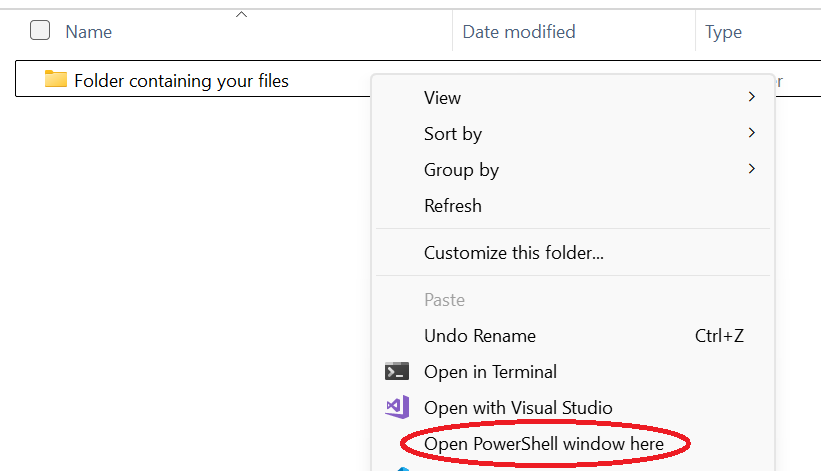
- 4.Type
Get-ChildItem -Nameand press Enter - 5.Select all of the output (click and drag with your mouse) and copy it (Ctrl+C)
- 6.Paste the filenames into the text box below
Ready to Increment Your File Numbers?
3 free uses. No credit card required.
Frequently Asked Questions
Incrementing file numbers means adding +1 (or more) to the number in each filename. For example, if you have files 10-50 and need to make room at position 10, incrementing shifts them to 11-51.
Yes! If you need to insert multiple files, just specify how many new documents you're adding. We'll increment all affected files by that amount.
Absolutely. Renumber Files processes everything locally in your browser. We never upload your filenames to any server, never access your actual files, and never store any of your data. It's 100% client-side processing.
Renumber Files works for both Windows and MacOS. The web interface works on any modern browser.
No installation required. Renumber Files is a web application that runs entirely in your browser. You just need PowerShell (built into Windows) to execute the generated rename commands.
You get 3 free uses of the full tool after signing in. The public demo lets you test with up to 10 files without signing in. Pro subscribers get unlimited access for $9.50/year.
Yes, you can cancel your Pro subscription at any time from the billing portal. You'll retain access until the end of your billing period.