Renumber It
The Insert-and-Shift Problem, Solved

Insert a File into a
Numbered Sequence

The problem: you have files 1–50 and need to insert a new file at position #15. The solution: Renumber It shifts #15–50 to #16–51 automatically. Zero manual work.

Works in your browser — no download required
100% Private and Confidential — filenames never leave your device

The Manual Way

  • 1. Rename file 50 → 51
  • 2. Rename file 49 → 50
  • 3. Rename file 48 → 49
  • 4. ... repeat 35 more times ...
  • 5. Finally rename file 15 → 16
  • 6. Hope you didn't make a typo

~30 minutes of tedious work

The Renumber It Way

  • 1. Copy and paste your filenames
  • 2. Enter "15" as insert position
  • 3. Preview the new filenames
  • 4. Automatically renumber your filenames
  • 5. Done!

~30 seconds, zero errors

Insert at Position #15

Before
01 Document.pdf
...
14 Document.pdf
15 Document.pdf
16 Document.pdf
...
50 Document.pdf

You want to insert a new file at position #15

After
01 Document.pdf
...
14 Document.pdf
15 [YOUR NEW FILE]← Gap for new file
16 Document.pdf
17 Document.pdf
...
51 Document.pdf

Files #15+ automatically renumbered

How to Use It

Simple, guided, and impossibly fast

1

Copy and Paste Your File Names

Copy and paste the names of your numbered filenames (we automate that for you). The tool automatically detects the pattern.

2

Choose Where to Insert

Tell the tool where you want to add new files. As many new positions as you like.

3

Generate & Apply

Preview your changes, then automatically rename your files with a couple of clicks! It's that simple!

Insert Multiple Files at Once

Need to insert files at positions 10, 25, and 40 all in one go? Renumber It handles multiple insert positions simultaneously, calculating the correct shift for each file.

This is especially useful when organizing large document collections, photo sequences, or legal exhibit bundles where multiple new items need to be inserted.

Your Privacy and Confidentiality, Protected

  • 100% browser-based — all processing happens locally on your device
  • No uploads — we never see your files
  • Only file names — the tool only renumbers your file names - and we never see them

Your data stays on your device.

Interactive Demo

Try It Now

Test the tool with up to 10 files. No sign-in required.

Quick Start Guide

Follow these steps to get your file list from PowerShell

  1. 1.In your file explorer, navigate to the folder containing files you want to renumber.
  2. 2.Hold Shift on your keyboard and right-click on the folder containing the files you want to renumber
  3. 3.Select "Open PowerShell window here"
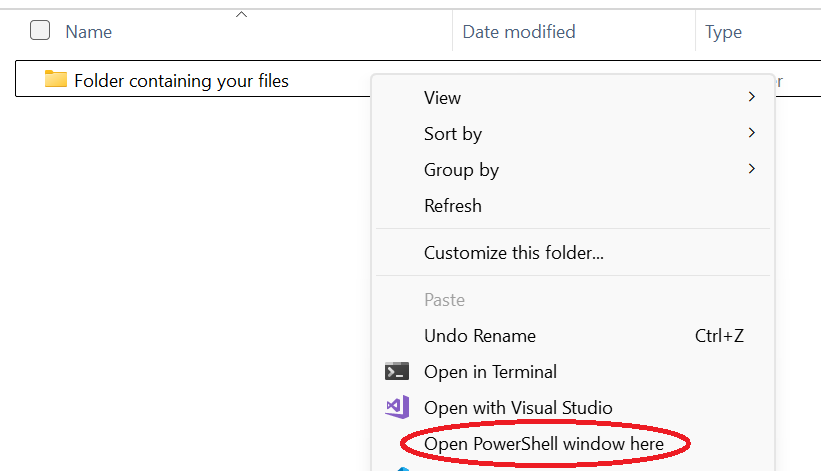
PowerShell menu showing Open PowerShell window here option
  1. 4.Type Get-ChildItem -Nameand press Enter
  2. 5.Select all of the output (click and drag with your mouse) and copy it (Ctrl+C)
  3. 6.Paste the filenames into the text box below

Try the Demo

Test with up to 10 files. Sign in for unlimited access + 3 free runs.

Insert Without the Manual Work

3 free uses. No credit card required.

Frequently Asked Questions

Simply paste your list of numbered filenames, specify where you want to insert new files, and we generate PowerShell commands that rename everything automatically. The entire process happens in your browser — your filenames never leave your device.
Absolutely. Renumber It processes everything locally in your browser. We never upload your filenames to any server, never access your actual files, and never store any of your data. It's 100% client-side processing.
Renumber It works for both Windows and MacOS. The web interface works on any modern browser.
No installation required. Renumber It is a web application that runs entirely in your browser. You just need PowerShell (built into Windows) to execute the generated rename commands.
You get 3 free uses of the full tool after signing in. The public demo lets you test with up to 10 files without signing in. Pro subscribers get unlimited access for $9.50/year.
Yes, you can cancel your Pro subscription at any time from the billing portal. You'll retain access until the end of your billing period.
Renumber It automatically detects common numbering patterns including: '01 Filename.ext', '1. Filename.ext', '001_filename.ext', and more. It preserves your existing separator style and zero-padding.
Renumber It will detect and warn you about duplicate numbers in your original file list. You can proceed anyway, but we recommend resolving duplicates first for best results.

Related Use Cases